iPass
Document and facial biometrics registration app for event entry, made at Ivy
- My role
- Senior UI/UX Designer
 iPass
iPassContext
iPass is an app for event access through facial recognition: before the event, people register an ID document and a selfie, and at the entrance they're let in by their face, with no printed ticket or check line. The project was done at Ivy, where I worked as Senior UI/UX Designer, responsible for the experience and interface of the entire sign-up journey.
Challenge
Validation depends on two good photos: a legible document and a sharp face. The people taking those photos are the event's own audience, of any age, on their phones, often in a hurry. If a photo comes out bad, registration stalls and the problem only shows up at the event door. The flow had to teach without feeling like a tutorial and fix errors on the spot.
The journey, step by step
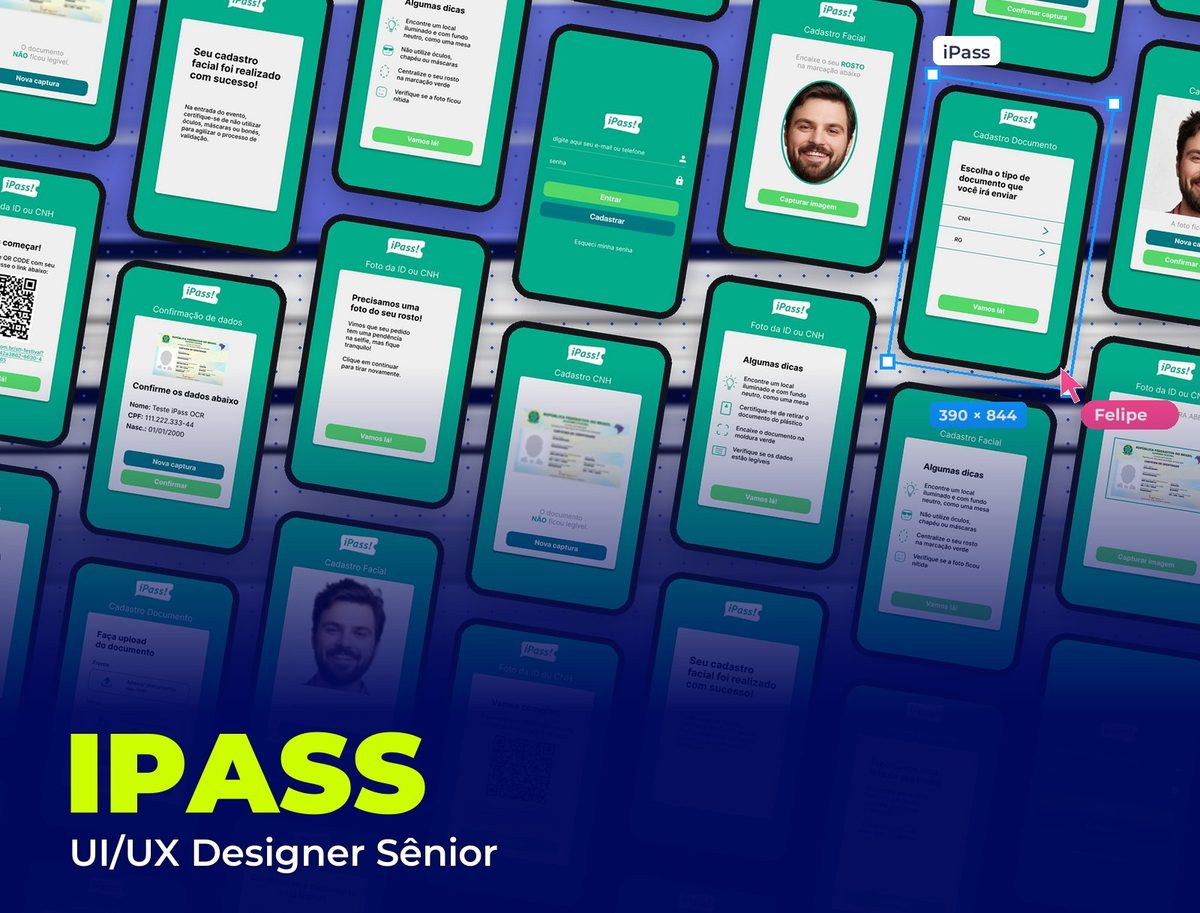
The brand's green background and a light card in the center with one task per screen, a short title and a single primary button. Light green always moves forward, petrol always retakes.
- 01 / 05
Sign-in and document
Login with email or phone and, right after, a simple choice between driver's license (CNH) and ID card (RG). Those who already have a photo can attach front and back (up to 5 MB), and those who don't can take one on the spot with the "Take photo" button.
- 02 / 05
From computer to phone
If registration starts on a computer, a QR code and a link move the capture to the phone, where the camera is better. When the selfie comes back with an issue, the app lets people know in a calm tone ("but don't worry!") and asks them to retake it, instead of rejecting the request.
- 03 / 05
Document capture
Four tips with icons before opening the camera (lighting, take it out of the plastic, fit it in the frame, legible details), the rear camera with the green frame, the legibility confirmation and, finally, the data read by OCR (name, CPF and date of birth) for the person to check before moving on.
- 04 / 05
Facial registration
The same tip pattern for the selfie (no glasses, hat or mask, face centered), the oval guide on the camera, the question "Did the photo come out GOOD?" with a retake or confirmation, and the success screen that already gives directions for event day.
- 05 / 05
Errors with a way out
When the image comes out blurry, the app shows the person's own blurry photo, says what happened with the "NO" highlighted and offers a single path: retake. No error codes or generic messages.
All screens
Visual System
Two action colors with fixed roles (light green to move forward, petrol to retake), a light card on the brand green and large black headings: people understand the whole screen at a glance, even with phone in hand and in a hurry.
Palette
iPass Green
#02AB89
Brand background, frames and highlights
Action Green
#53D769
Buttons that move forward: Sign in, Let's go!, Confirm
Petrol
#017781
Buttons that retake: New capture, Register, Take photo
Ice
#EFEFEF
Content card
Black
#000000
Headings and text
Takeaways
In a biometrics flow, photo quality is a design problem before it's a technology problem. Giving the tip before the camera, showing the frame during capture and asking for confirmation right after prevents most errors, and when an error does happen, showing the person's own bad photo explains the problem better than any text.
Other projects to explore.
 App · Aviation & Pets
MIA Pet
Miami International Airport app for travelers with pets: pet digital ID, check-in and partners, made at Ivy
See project App · Tattoo
Tintaê
Booking app for tattoo studios: from the reference to a confirmed slot with the artist, in a few taps
See project E-commerce & Pet
Manada Animal
Pet shop e-commerce and digital experience
See project