Serafin
Corporate website and conversion landing page
- My role
- Full Stack Developer · UX/UI Designer
- Year
- 2023
 Serafin
Context
Institutional website and sales landing page for Serafin, a fintech that combines financial management through an app with guidance from a human financial mentor. The page had to sell two things rarely reconciled on a single landing page: trust in financial technology and the value of having a real person guiding your decisions.
Problem
Serafin's value proposition depends on two fronts (app and human mentoring) and most fintechs only communicate one of them. Without a page clearly explaining how the two fit together, visitors arrived unsure whether they were signing up for an app, a consulting service, or both.
Goal
Create a landing page that guides visitors from the problem (disorganized finances) to the action (start using it or book a mentor) in a clear sequence, proving with numbers and testimonials that the combination of technology and human mentoring works.
Process
A direct hero: "Serafin puts you in control of your financial life", with a single CTA ("Start using it now"), a dashboard mockup and a real photo of a user, humanizing the proposition before any technical explanation of the product.
Right below the explainer video ("A simple, organized financial life with money in your pocket"), I placed social proof in numbers: 10k+ families impacted, 95%+ approval, 50+ financial mentors, at the exact moment visitors are still processing the hero's promise.
The mentoring sign-up flow was cut down to 3 steps (Choose, Book, Done). Financial mentoring traditionally involves several scheduling steps and paperwork; the page had to prove that here it fits on one screen.
The "Serafin App Desktop" section details three product blocks: "Say Goodbye to Spreadsheets" (automatic sync of accounts and cards), "Set Your Goals" and "Achieve Your Life Projects", each with a real app mockup, not a generic illustration. The page sells the app by showing the product itself in use.
The "Serafin Mentor" section only appears after the product showcase: a real photo of a mentor at work and copy humanizing the guidance. A deliberate choice of order: first prove the technology, then introduce the person behind it. The page closes with video testimonials from real customers.
The app, flow by flow
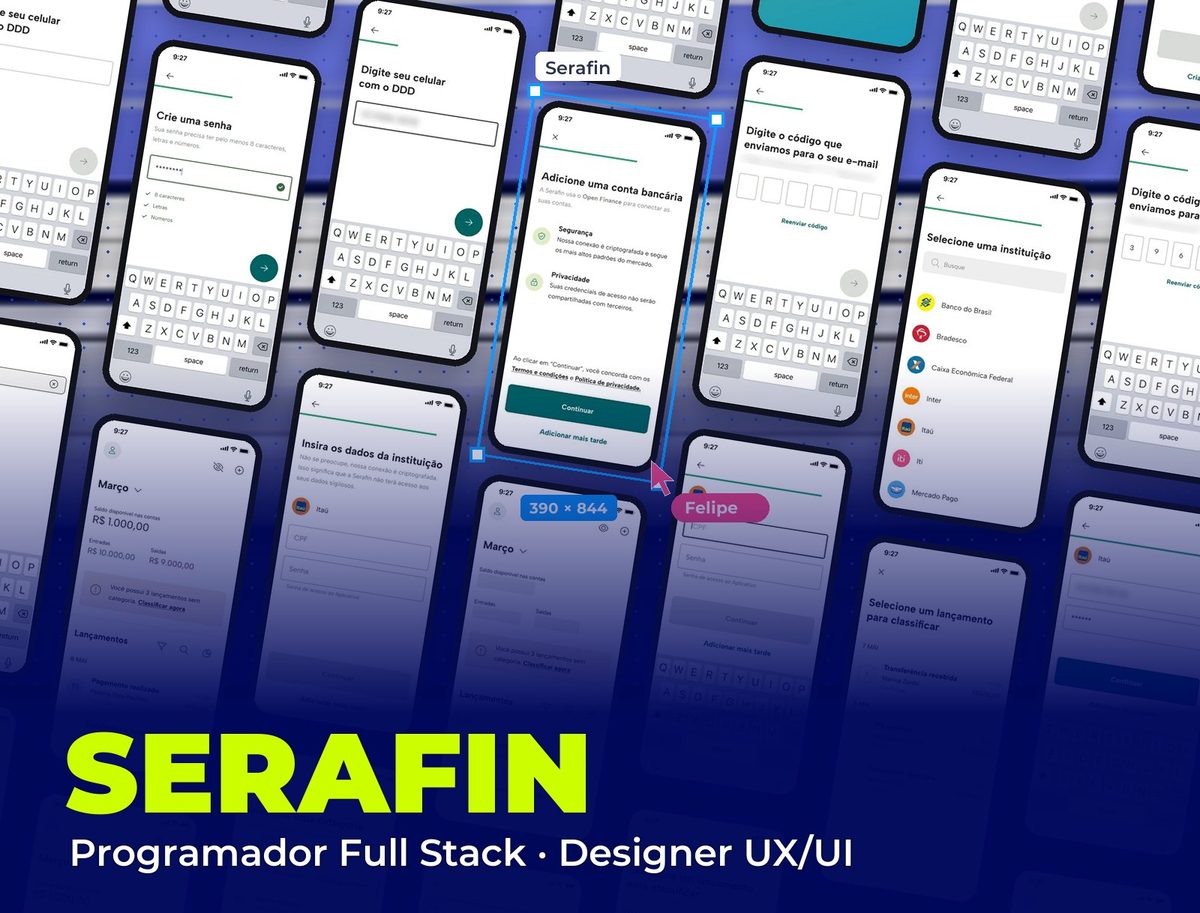
Every screen of the Serafin app grouped by usage flow, from the splash screen and Open Finance sign-up to the financial plan, accounts and profile.
Splash and login
The splash screen uses the brand's teal gradient, from “Tap to start” to the logo, and the same color frames the login. The form asks only for email and password, with “Forgot password” right below and the “Sign in” button disabled until the fields are filled in.
Onboarding: customer details
Sign-up asks for one piece of information per screen (name, email, phone, confirmation code and password), with a progress bar at the top. The next button only turns green when the field is valid, the code arrives by email with a resend option, and the password shows its requirements being met as the person types.
Onboarding: connect your bank
Before asking for any bank details, the app explains Open Finance with two arguments (security and privacy). Search finds the bank in a few letters, login details are requested one at a time with a reminder that the connection is encrypted, and “Add later” is always visible so it doesn't block anyone not ready to connect yet.
Transactions
The main screen shows the month's balance, income and expenses, and a daily list of transactions from all accounts, with category icons and card installments. An orange notice prompts the user to classify uncategorized transactions, and the eye icon hides amounts for using the app in public.
Classify transactions
Classifying is quick: the app lists what's uncategorized, the person chooses between fixed expenses, variable expenses or income, with a line of examples under each category (“Water, electricity, gas, internet…”), and the transaction shows up with the right icon.
Expense summary
A donut chart splits the month's spending into fixed, variable, financing, debt and investments, with each group's percentage and amount. Tapping a group highlights its slice and opens the categories inside it.
Search and filters
Search filters as the person types and opens the transaction details. Filters are chips by type, institution, classification and category; the button shows how many filters are active and the filtered list gets a badge on the filter icon.
Plan
The plan shows the average of the month's or year's finances: net balance, average income and expenses in bars, expense distribution in color blocks and each category compared to the average, with an alert when it goes over the limit. When expenses exceed income, a card suggests talking to the mentor, linking the app to the human mentoring.
Accounts and cards
Connected accounts sit in account and card tabs, with balance by account type, card limit used and the date of the last update. Adding another institution repeats the same onboarding flow, so the person already knows the way.
Profile and details
The profile brings together my details, change password and subscription. Changing the password asks for the current one and the new one twice, and changing the email requires the code sent to the new address, always with a success confirmation at the end.
Serafin Desktop App
The desktop version takes the same product to a bigger screen: a fixed side menu with the app's areas, the "Talk to your mentor" shortcut always visible and side-by-side panels (table on the left, summary and alerts on the right), for those who prefer to plan their finances on a computer.
Solution
A complete institutional landing page: a direct-conversion hero, quantified social proof right after the explainer video, a 3-step sign-up flow, an app showcase with real product mockups, a section dedicated to the human mentor and video testimonials, built with full fidelity to the design.
10k+
families impacted
95%
customer service approval
+50
financial mentors in the network
Visual System
The site's palette uses the same green as the app's brand, in a darker, more saturated tone: it reinforces an institutional feel and financial trust at first impression, before visitors see the product from the inside.
Palette
Serafin Green
#125C46
Brand color: hero, main CTAs and footer
Action Green
#1E8F5E
Conversion buttons ("Start using it now", "Discover the App now")
Light Gray
#F4F6F2
Background for the social proof and "How it works" sections
Editorial Black
#202120
Main text on light backgrounds
White
#FFFFFF
Text on green backgrounds and content cards
Typography
Albert Sans
400 / 600 / 700 / 800
Headlines, CTAs and interface text across the site
Takeaways
Selling financial technology together with human mentoring means proving each separately before bringing them together: numbers and app screens prove the technology, the mentor's photo and voice prove the human side. Trying to deliver both messages in the same section dilutes both.
Other projects to explore.
 Legal
LegalAlmeida & Costa Advocacia
Corporate website with UI/UX and a PHP WordPress theme built from scratch
See project Healthcare & Aesthetics
Lúmina Estética Avançada
Clinic website with UI/UX and a custom WordPress theme
See project Mining & Institutional
Samarco
Landing pages for the Reparation Agreement, with UI/UX and a PHP WordPress theme
See project